Digital scrapbook paper is a pattern you buy once as a file and print as often as you need. The catch is that a home printer does not know you want a crisp, full-color pattern on cardstock unless you tell it. This guide walks through the whole process, from picking the right file to the settings that make the difference between a muddy print and one that looks like store-bought paper.
1. Pick the right file for your paper
Most packs, including ours, come in more than one format. Choose the one that matches the sheet in your printer:
- US Letter PDF (8.5 x 11 in): the everyday choice in North America. Every page is already sized, so you just print.
- A4 PDF (210 x 297 mm): the same idea for A4 printers in Europe, the UK and most of the world.
- 12 x 12 in JPG: the full scrapbook size at 300 DPI. Use it with a wide-format printer, a print shop, or in design software. See how to print 12×12 paper.
- 6 x 6 in mini PDF: a smaller version of each design on a Letter page with crop marks, handy for cards and mini albums.
In our Letter and A4 PDFs the pattern keeps the same scale as the 12 x 12 file. You get a full sheet of the design at its true size, not a shrunk copy. The 6 x 6 mini file is the exception: it scales the whole design down so motifs come out smaller.
2. Choose your paper
Plain copy paper works for a test print, but it curls under heavy ink and looks thin in a layout. For finished projects most crafters use:
- Matte cardstock, 65 lb cover (about 176 gsm) for card bases, layered layouts and tags. Most home inkjets handle this weight, but check your printer manual.
- Heavier text weight or light cardstock, 28 to 32 lb (about 105 to 120 gsm) for gift wrap, envelope liners, decoupage and junk journal pages that need to fold.
- Matte presentation paper when you want the richest color without the glare of photo paper.
Our guide to the best paper for printing scrapbook paper goes deeper on weights and finishes.
3. Set up the print dialog
These settings matter more than the printer you own:
- Scale: Actual size (100%). “Fit to page” or “Shrink oversized pages” changes the scale of the pattern and can add a white border.
- Paper type: match what is in the tray. Choosing “Matte” or “Cardstock” tells the printer how much ink the paper can take. Leaving it on “Plain paper” is the most common cause of pale or streaky prints.
- Quality: High or Best. It is slower and uses a little more ink, and it is the setting that makes small motifs sharp.
- Borderless: on, if your printer offers it. Many home printers cannot print to the very edge. If yours leaves a thin white margin, trim it off or plan your layout so the edge is covered.
- Feed one sheet at a time when you use cardstock, through the rear or manual feed slot if your printer has one.
4. Do a test print first
Screens glow and paper reflects, so colors always shift a little between the two. Print one sheet, let it dry for a minute, and look at it in daylight before you print a stack. If it is darker than you expected, try the fixes in our printing problems guide.
Tip: inkjet ink stays slightly soft for a few minutes on matte and coated papers. Let prints dry flat before you stack, cut or glue them.
5. Cut and use
A paper trimmer gives cleaner edges than scissors, especially on cardstock. For the 6 x 6 mini PDF, line the blade up with the crop marks at the corners. Keep your offcuts: strips and corners are perfect for tags, envelopes and bookmarks.
Laser printer or inkjet?
Both work. Inkjets usually give smoother color on matte paper and handle cardstock better. Laser prints are dry and water resistant straight away, which is handy for decoupage, but heavy cardstock can jam some laser printers, so check the maximum paper weight in your manual.
Packs that print well for a first try
Small, evenly spaced motifs and classic plaids are forgiving on any printer. A few of our packs that are easy first prints:
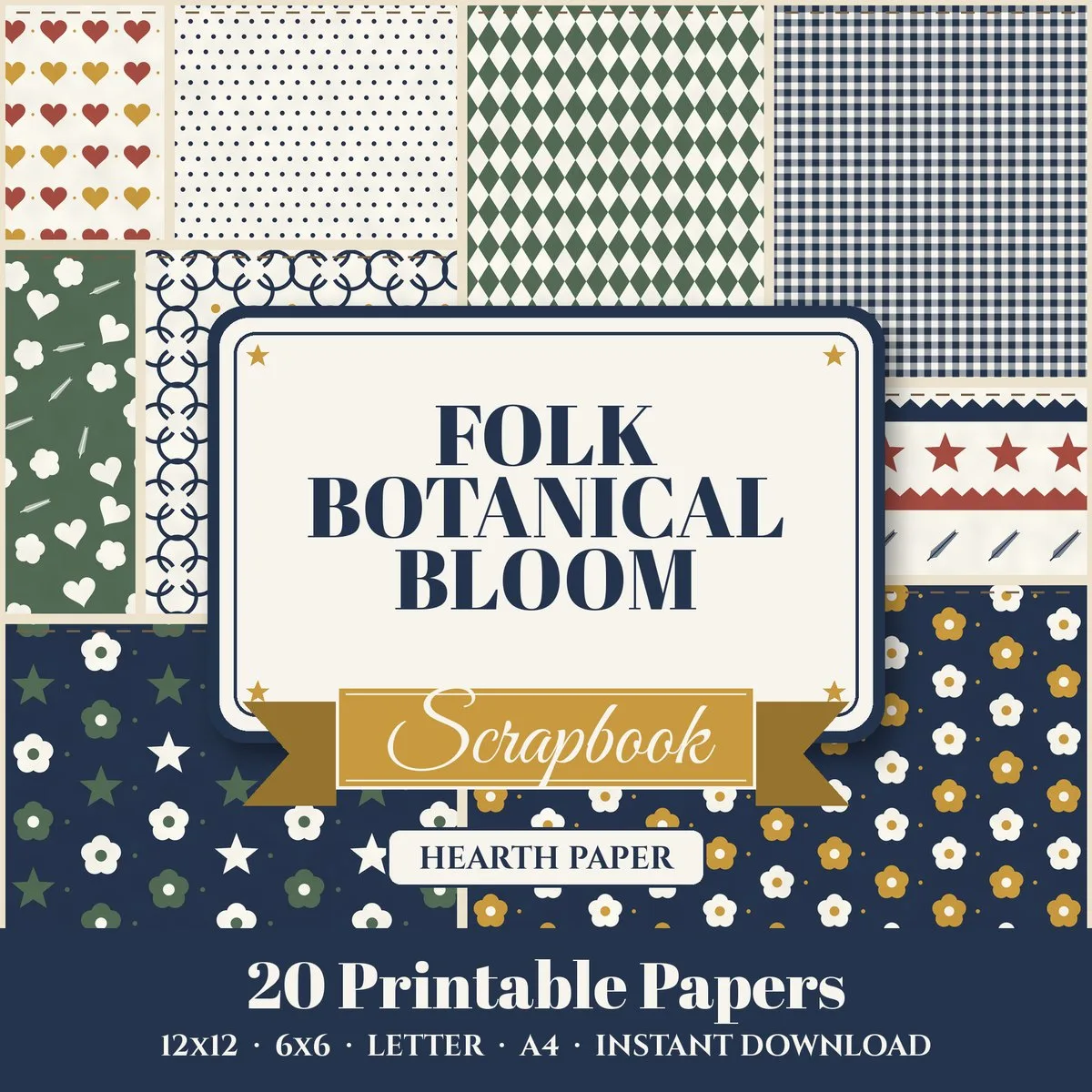
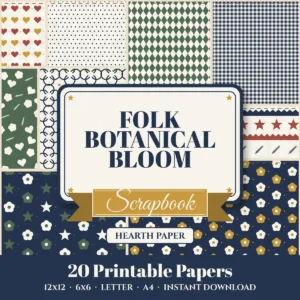 Folk Botanical Bloomfrom $4.99
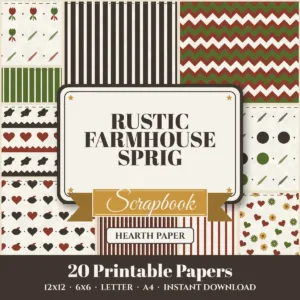 Rustic Farmhouse Sprigfrom $4.99
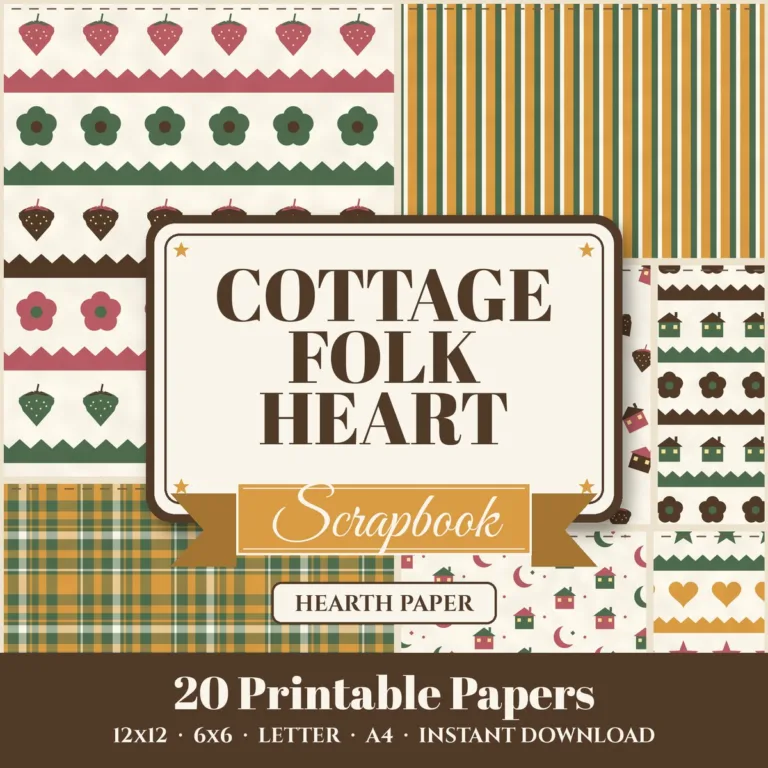
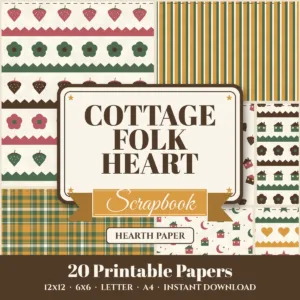 Cottage Folk Heartfrom $4.99
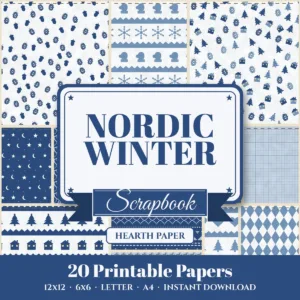 Nordic Winterfrom $4.99
Want to test your printer before you buy anything? Our free sampler has 10 papers in all four formats.