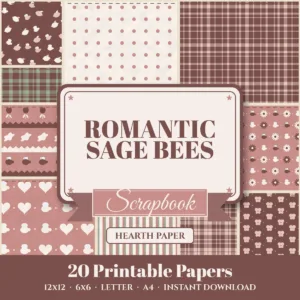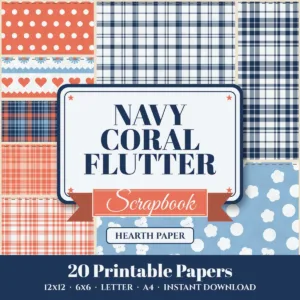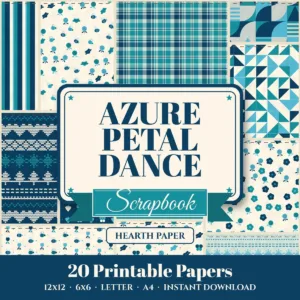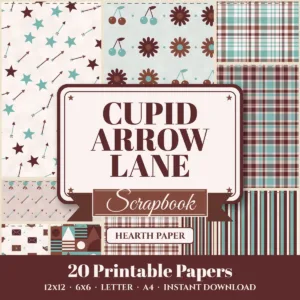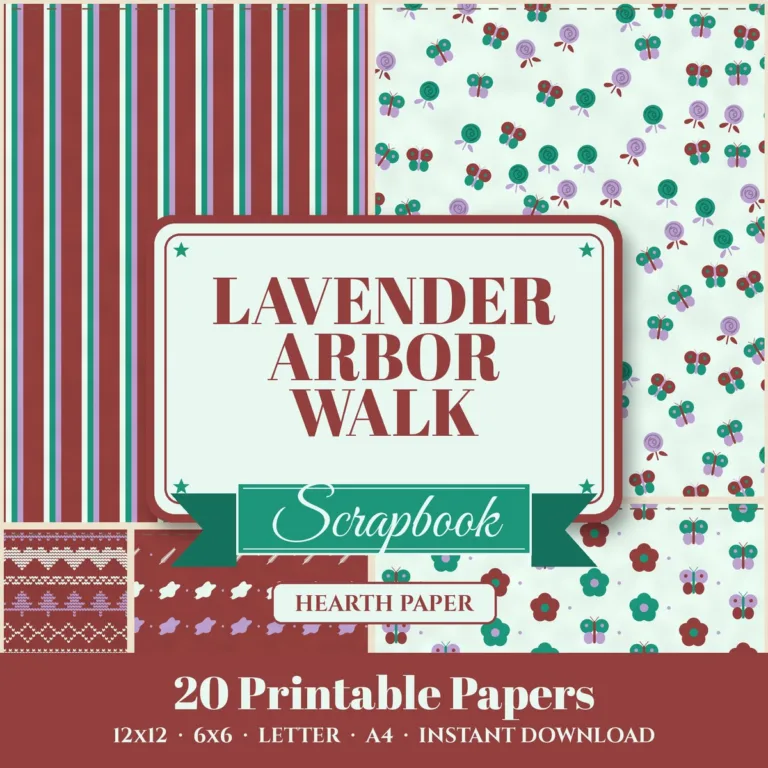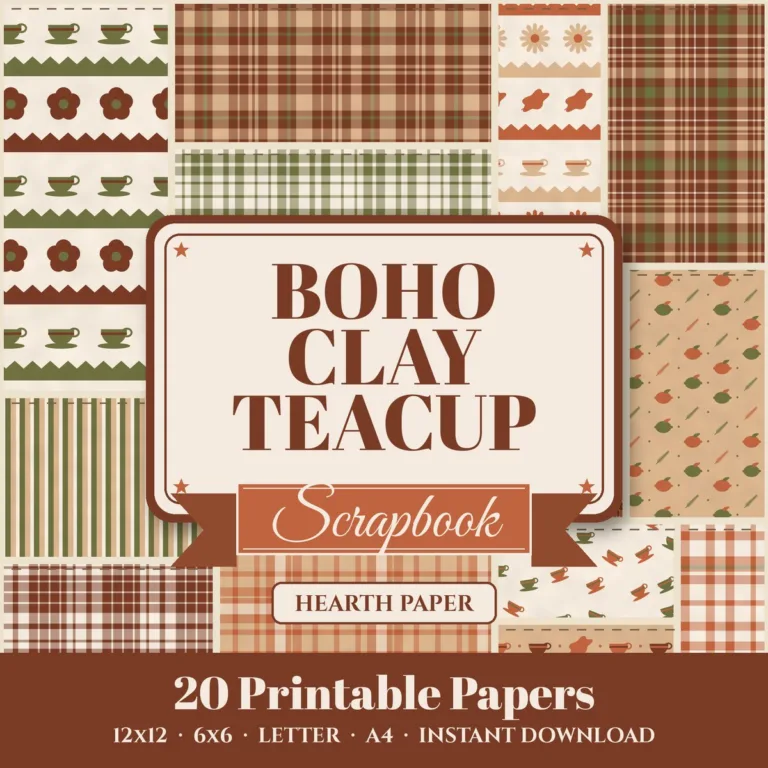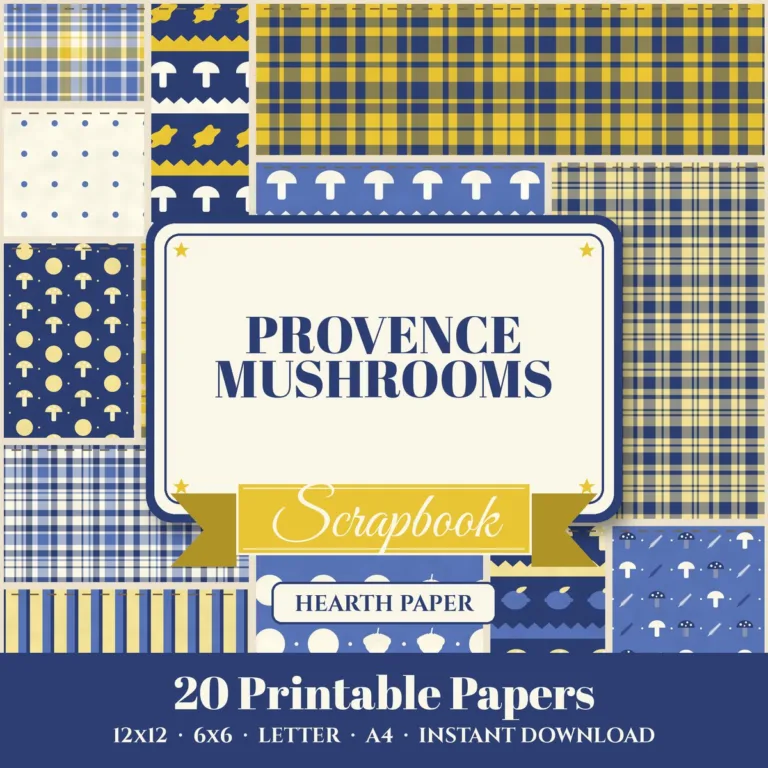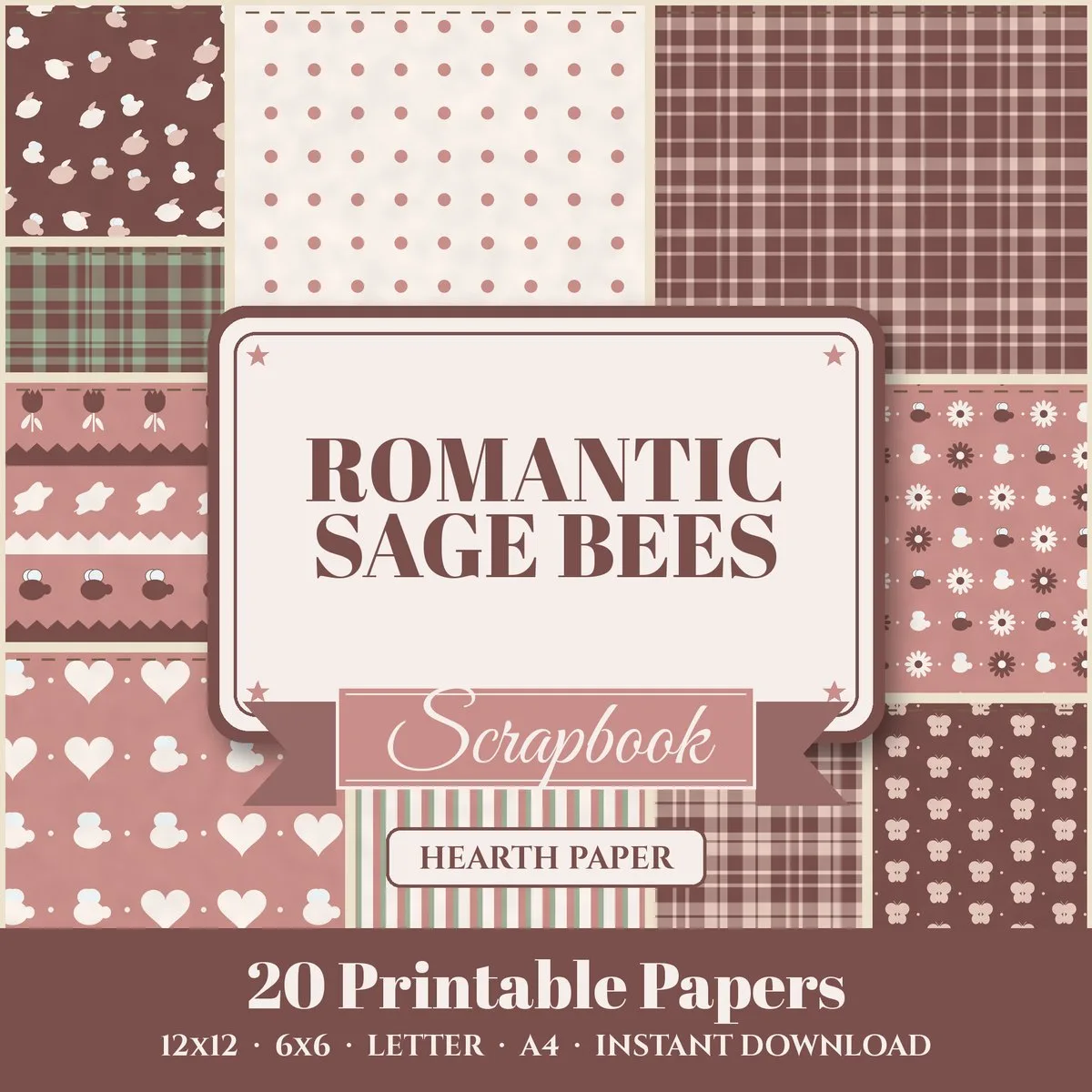
Canva is one of the easiest places to use digital paper on screen. A pattern makes an instant background for social posts, printable tags, party signs, planner pages and product photos. Here is how to bring your papers in and use them as backgrounds, inside frames and shapes, and behind text.
Upload your papers
- Unzip the 12 x 12 JPG file from your pack on your computer. Canva cannot open a zip directly.
- In Canva, open any design, click Uploads in the side panel, then Upload files, and select the JPGs. You can select several at once.
- They stay in your Uploads library, so you only do this once per pack.
Each of our JPGs is a few megabytes, well inside Canva’s upload limits, and at 3600 x 3600 pixels they stay sharp even on large print designs.
Use a paper as the full background
- Drag the paper from Uploads onto your design.
- Right-click it and choose Set image as background, or drag it to the edge until it snaps to fill the page.
- Double-click the background to reposition or scale it. Zoom in to make the motifs bigger, or out to show more pattern.
Busy patterns compete with text. If your words are hard to read, add a solid rectangle or a soft label shape on top of the paper and put the text on it.
Put a paper inside a frame or shape
Canva’s frames act like cookie cutters: drop an image in and it fills the shape.
- Go to Elements, search “frame”, and pick a circle, heart, arch, letter or tag frame.
- Drag your paper onto the frame. It snaps inside.
- Double-click to move the pattern inside the frame.
This is how to make printable gift tags, round stickers, bunting flags and patterned letters for a party banner.
Patterned text
Canva has letter frames, which work the same way. Search “letter frame” in Elements, add the letters you need and drop a paper into each one. Big, bold letters show the pattern best.
Recolor and soften
- Transparency (the checkerboard icon) fades a paper into a subtle background for text-heavy designs.
- Edit > Adjust lets you lighten, cool or warm a pattern to match a photo.
- Layer a white rectangle at 70 to 80% transparency over a busy paper to make a soft, printable stationery page.
Print and export
For anything you will print, download as PDF Print and print at actual size. Set your design to the paper size you will print on (Letter or A4) so nothing is scaled. For more printer settings, see how to print digital scrapbook paper.
What your license allows in Canva
Using our papers in Canva for your own cards, invitations, social posts and planner pages is covered by the Personal license. If you plan to sell what you make, check which license fits:
- Selling printed physical items, such as cards or tags you print and ship: Personal covers up to 500 items per design, Commercial is unlimited.
- Selling digital products with the paper as a background, such as printable planners, templates or invitations: Commercial license, as long as the paper is not the main item and cannot be pulled out as a standalone paper.
- Selling or sharing a Canva template link that contains the paper files themselves: that hands the paper to your buyers, so it needs the Resell (PLR) license.
Details and examples are in our license guide.