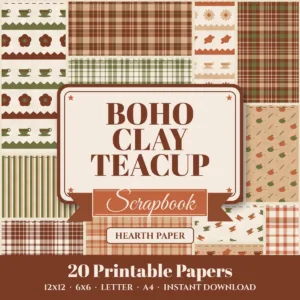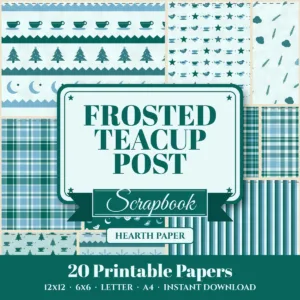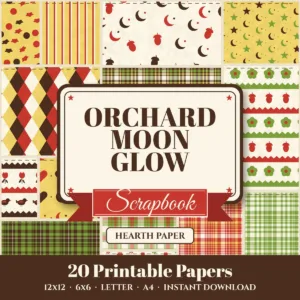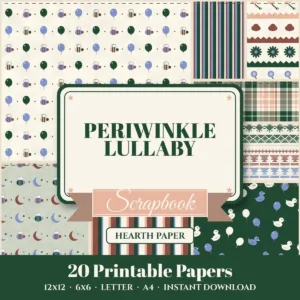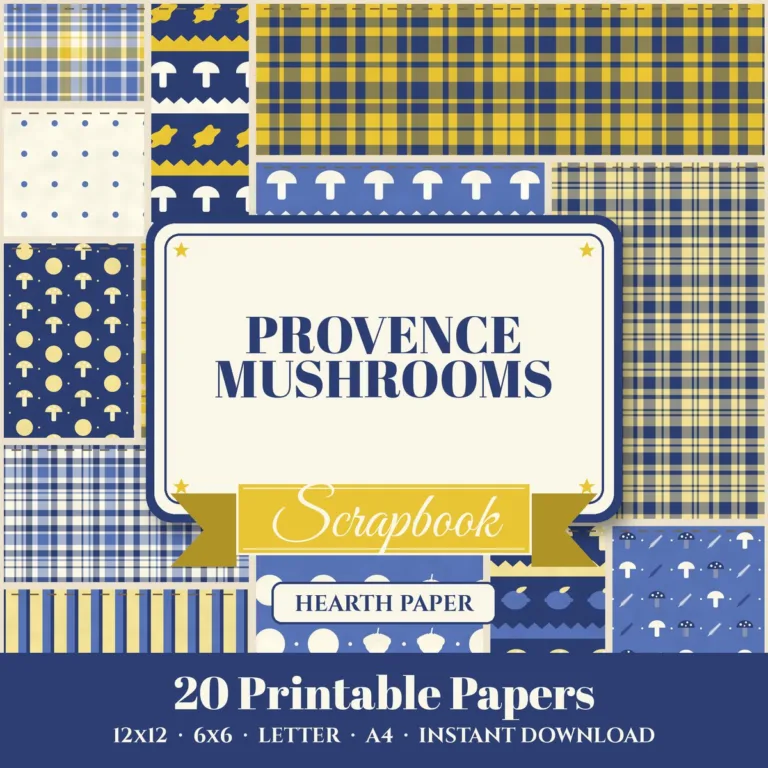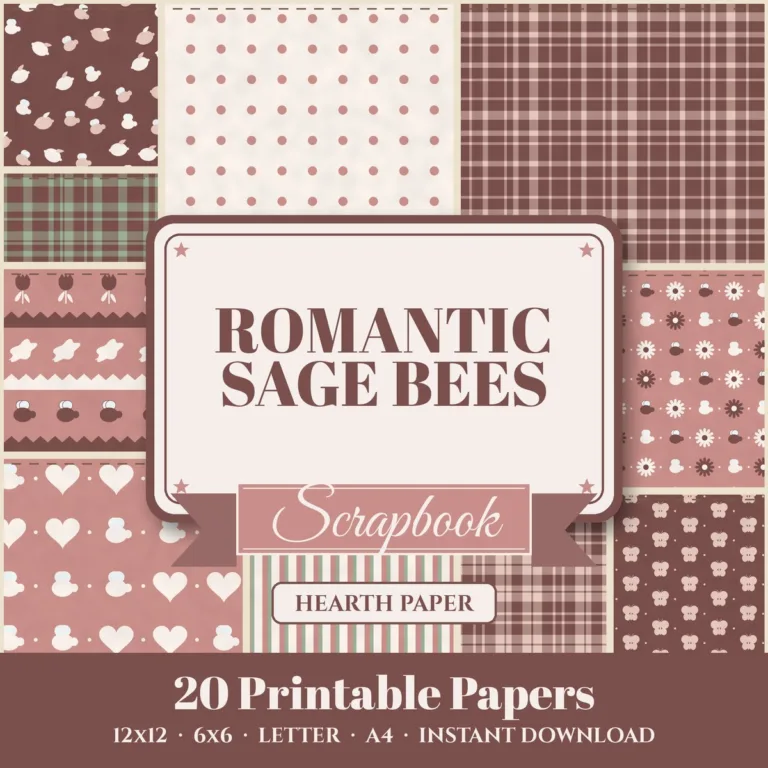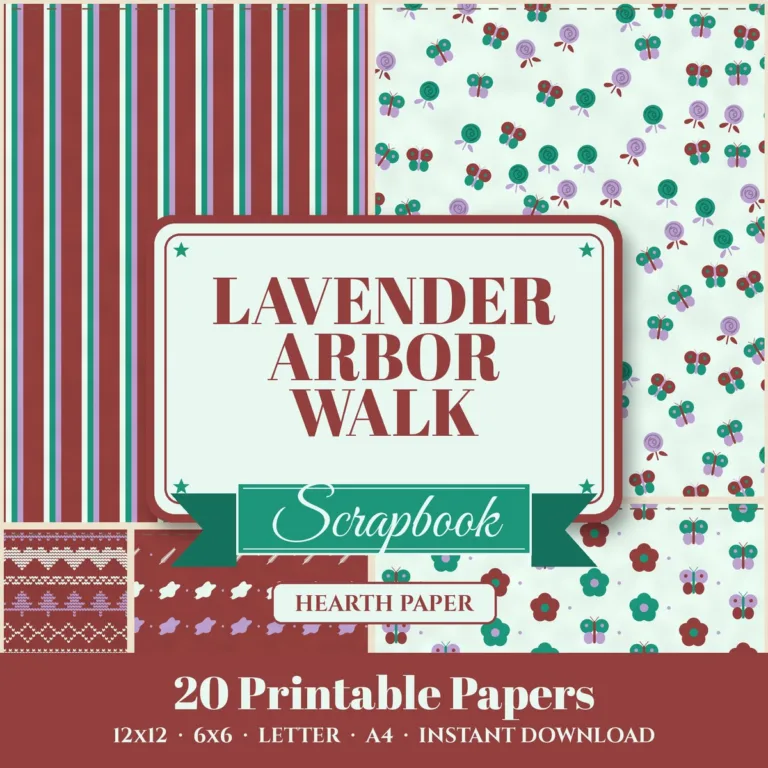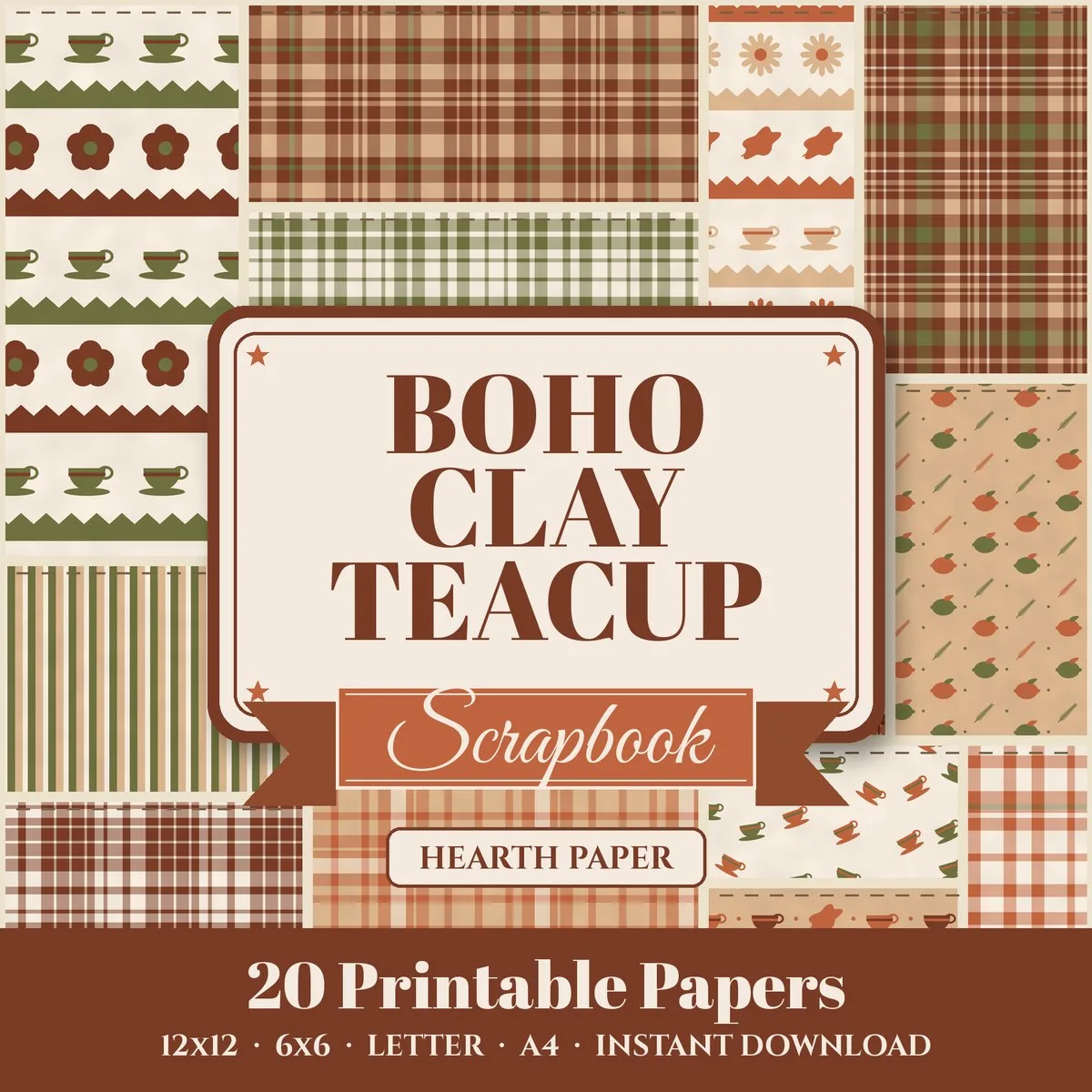
Digital paper is not only for printing. On an iPad or tablet, the same patterns work as canvases for drawing and lettering, page backgrounds for digital planners, and textures for journaling. Here is how to bring them into Procreate and into planner apps, and what to watch out for.
Get the files onto your tablet
- Download your pack and unzip it. On an iPad, tap the zip in the Files app and it expands into a folder.
- Keep the folder in Files or iCloud Drive so every app can reach it.
- Use the 12 x 12 JPG files for drawing apps. They are 3600 x 3600 pixels, enough to zoom in without blur. Use the PDFs if your planner app imports PDF pages.
Procreate: paper as a canvas
The quickest way: in the Procreate gallery, tap Import and choose a JPG. Procreate opens it as a new canvas at its full size, with the paper as the bottom layer. Draw, letter or paint on new layers above it.
Large canvases limit the number of layers you can use, and the limit depends on your iPad’s memory. If you need more layers, make a smaller canvas (for example 2400 x 2400 px) and insert the paper into it instead.
Procreate: paper as a layer
- Open an existing canvas, tap the wrench icon, then Add > Insert a file (or Insert a photo if you saved it to Photos).
- The paper arrives as a new layer. Use the transform tool to scale it. Hold “Uniform” so the pattern does not stretch.
- Drag the layer to the bottom of the stack, or set it as a clipping mask above lettering to fill the letters with the pattern.
Patterned lettering: write your word on one layer, put the paper on a layer directly above it and tap Clipping Mask. The pattern shows only inside the letters.
Digital planners and journaling apps
Apps such as GoodNotes and Notability import images and PDFs.
- Page backgrounds: import a Letter or A4 PDF as a new notebook or as page templates. Every page gets a patterned background.
- Stickers and washi strips: crop a JPG into small pieces in Photos or Procreate and add them to your sticker collection.
- Section dividers: one pattern per month or per project makes a planner easy to scan.
Busy patterns can make writing hard to read. Lower the paper’s opacity in Procreate, or add a white text box over it.
Digital scrapbooking
Digital scrapbookers use the 12 x 12 JPGs as page backgrounds in Photoshop, Affinity, Procreate or a dedicated scrapbooking app, then add photos and embellishments on layers. Export the finished page as a high-quality JPG at 3600 x 3600 pixels for a photo book, or print it at a shop.
What the license allows
Using the papers in your own planners, journals and digital scrapbook pages is personal use. Selling digital planners, stickers or templates that use the papers as a background needs our Commercial license, as long as the papers are not the main item and cannot be extracted as standalone papers. Selling a digital paper pack or sticker sheet where the paper itself is the product needs the Resell (PLR) license. See the full license guide for examples.